Help
Frequently asked questions
Everything people usually ask before downloading — pricing, the free version and Lifetime Pro, head tracking, Mac and iPhone support, iCloud sync, sounds, and privacy. Still stuck? Email support.
Getting started
There's nothing to set up and nothing to configure — you install the app and start building a room. Below: what prostir zvuku is, what runs it on Mac and iPhone, where to get it, and what hardware you'd need to bring.
What is prostir zvuku?
prostir zvuku is an app for building a spatial nature soundscape. Instead of one flat stereo loop, you arrange individual sound layers — rain, fire, ocean, wind, birds, and more — around you on a canvas. The result is a room you've designed for focus, rest, or sleep, with sound that has a place rather than just playing in your ears.
What do I need to run it?
prostir zvuku currently runs on Mac and iPhone.
- macOS
- 14 or later.
- Mac
- Apple Silicon is what we test on and where we recommend running it. Intel Macs running macOS 14 may technically work but haven't been verified yet.
- iPhone
- iOS 17 or later. iPad support is not available yet.
- Where
- App Store
Spatial audio plays through any output you connect — Mac speakers, iPhone speakers, wired headphones, AirPods, or third-party Bluetooth headphones.
Where do I download it?
prostir zvuku is available on the App Store. There is no separate installer or direct download from the website — installing from the App Store is the only way to get the app, and the only way to receive updates.
Is there an iPhone or iPad version?
Yes — there is now an iPhone version.
iPad support is not available yet. Lifetime Pro is a universal purchase, so the same unlock works across your Mac and iPhone on the same Apple Account.
Do I need AirPods or special headphones?
No. Spatial audio works through any output — Mac speakers, iPhone speakers, wired headphones, AirPods, or third-party Bluetooth headphones. AirPods are only needed if you want head tracking, where the sound field stays anchored to the room as you turn your head. See the Head tracking section below for details on which AirPods support it and how it works.
Pricing
prostir zvuku has two tiers — Free and Lifetime Pro — and the pricing is meant to stay simple. Below: what each tier costs and includes, what changes after you upgrade, and what carries across Mac and iPhone.
What does it cost?
prostir zvuku is free to download and use, with no trial — Free is permanently free.
The only optional upgrade is Lifetime Pro, a single one-time purchase. You'll see the local price in the App Store when you tap to upgrade. Lifetime Pro is not a subscription: you pay once and keep it.
What is the difference between Free and Lifetime Pro?
Both tiers share the core experience: the spatial canvas, head tracking, and quick background controls. Lifetime Pro unlocks the full sound library, removes the Free-version limits, and adds the features you tend to want once the app becomes part of your routine. The unlock works across Mac and iPhone with the same Apple Account. You can preview any Pro-only sound before you decide.
Free
Permanent, no trial
- Spatial canvas
- Head tracking with supported AirPods
- Quick controls on Mac and iPhone
- One sound from each category
- Up to 2 sound layers at once
- Timer up to 5 minutes
Lifetime Pro
One-time purchase — everything in Free, plus:
- The full sound library — every sound in every category
- Unlimited sound layers
- Saved rooms (presets)
- Your scene saved between restarts
- iCloud sync for rooms and current scene
- Custom output routing on Mac
- Timer with no length limit
Can I get a refund?
Yes. Lifetime Pro uses Apple's standard refund process — if something isn't right, request a refund directly from Apple at reportaproblem.apple.com. We don't see, process, or block refund requests; Apple handles all of it.
Does Lifetime Pro support Family Sharing?
Not currently. Lifetime Pro is tied to your individual Apple Account.
Head tracking
Head tracking is what makes a soundscape feel like a place rather than a recording. With it off, the whole scene rotates with your head; with it on, every layer stays anchored to the room. It is optional, uses the motion sensors in supported AirPods, and is processed entirely on your device — nothing is uploaded or stored.
What is head tracking?
It keeps the sound field fixed in space as you move. When it is off, the entire scene turns with your head; when it is on, each layer holds its position in the room, so the space feels stable and physical.
Which AirPods support head tracking?
Head tracking relies on the motion sensors built into certain AirPods. It works with AirPods Pro (1st and 2nd generation), AirPods 4 with Active Noise Cancellation, and AirPods Max.
Other earphones — including third-party brands that have their own head-tracking features — are not supported by this app's head tracking. The spatial mix itself still plays through any output you connect; you just don't get the live anchor that follows your movement.
How do I turn it on?
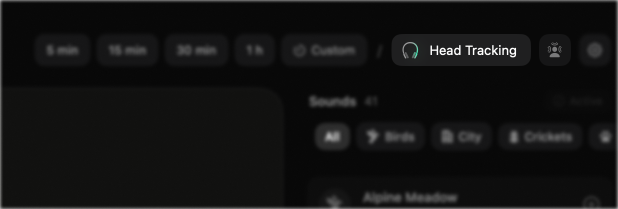
Connect supported AirPods, then tap Head Tracking in the editor. On Mac it is in the top-right corner. On iPhone it is in the top control row. The first time you do this, Apple may ask for Motion & Fitness access — allow it once and you won't be asked again.
Once motion starts streaming, the icon inside the pill lights up to show tracking is live. There is nothing else to configure — just move your head and the scene holds its place.
What is Recenter, and when do I use it?
When head tracking starts, prostir zvuku takes the direction you are facing right then as forward — the center of the scene. Everything is placed relative to that.
If you shift in your chair, turn toward your desk, or change seats, that forward can drift and the room can feel off-axis. The Recenter button — the square one right next to Head Tracking — snaps the room back: tap once and wherever you are looking becomes the new forward. It only has an effect while head tracking is streaming.
Does the app work without AirPods?
Fully. Head tracking is optional and everything else works on any headphones or speakers — you still get the spatial mix, just without the live anchor that follows your movement.
What happens if my AirPods disconnect?
Playback keeps going — head tracking simply stops and the sound returns to a fixed spatial mix. Your preference is remembered, so when you reconnect the same AirPods, tracking resumes on its own without you toggling anything.
Sounds & usage
The library lives inside the app, and day-to-day control is meant to stay out of your way. The questions below cover what's in the library, what works offline, and how the app behaves alongside the rest of your setup on Mac and iPhone.
What sounds are included?
The library ships with eleven categories of environmental sounds. Each category holds multiple individual layers (different rains, different fires, distant vs close versions, and so on) that you can stack on the canvas to build a room.
Free includes one sound from each category; Lifetime Pro unlocks every sound. You can preview any locked sound before upgrading.
Can I add my own sounds?
No. The library is fixed — you build rooms by mixing and arranging the included layers, and there's no way to import your own audio files into prostir zvuku.
Does it work offline?
Yes. The sound library is bundled inside the app, so playback does not depend on streaming or account check-ins. Playback, head tracking, and timers all work without an internet connection.
If you use iCloud sync, your rooms and current scene will sync the next time the device is back online.
Can I control it without opening the app?
Yes. You can manage what's playing from two places without opening the editor:
- The notch panel — pause, switch rooms, and adjust the scene from a compact panel that drops down at the top of the screen. On Macs without a hardware notch (iMac, Mac mini, Mac Studio, MacBook models without one), the same panel appears in the same top-center area — same controls, same place, just no physical notch shape.
- The menu bar — a small status icon for quick play/pause and scene switching.
- The iPhone background controls — keep the room close from the Lock Screen and, on supported iPhones, Dynamic Island.
Is there a sleep timer?
Yes. Set a fade-out timer and the room quiets gradually instead of stopping abruptly — much gentler for sleep or the end of a focus session.
In the Free version the timer can be set up to 5 minutes. Lifetime Pro removes the cap entirely, so you can set any length — useful for a full night, a long focus session, or a slow fade over a couple of hours.
Can I choose which device plays the sound?
On Mac, yes, with Lifetime Pro. A control in the top bar lets you send the app's audio to any connected output device — Mac speakers, an audio interface, a Bluetooth speaker, and so on — instead of only following the system default. Your choice is remembered between sessions.
On iPhone, audio follows the system route and you can switch it with the built-in AirPlay picker.
Does it work alongside video calls?
Mostly. Zoom and Google Meet leave prostir zvuku playing in the background while you take a call — they take over the microphone but don't touch system audio playback.
FaceTime is currently an exception: when a FaceTime call connects, macOS sends a system pause command that stops prostir zvuku. This is a known issue we're looking into.
Privacy & support
Privacy is treated as a default, not a setting. The questions below cover what (and how little) the app collects, where it lives, how to remove it, and how to reach a real person when something is unclear.
Do I need an account?
No. prostir zvuku doesn't have accounts — no sign-up, no login, no email collected, no profile to maintain. You install the app from the App Store and start using it.
What data does the app collect?
Very little, and most of it stays on your device.
Stays on your device
- Saved rooms (presets) and the current canvas arrangement
- App preferences (onboarding state, auto-resume, selected display and other device-specific settings)
- Head-tracking motion from your AirPods — read in real time, used immediately to position the sound field, never stored or uploaded
-
A randomly generated human-readable user identifier
(
PZ-XXXXXX) stored locally so it persists across launches
Sent off-device
- Apple — the standard App Store transaction record when you purchase Lifetime Pro (unavoidable for any in-app purchase)
- Apple iCloud — your saved rooms, current preset, current scene, and app identifier can sync between your own devices on the same Apple Account
-
RevenueCat — your
PZ-XXXXXXidentifier, purchase events forwarded by Apple, and basic device metadata (platform, app version, country code) so the app can recognise your Lifetime Pro purchase across launches - RevenueCat install analytics — anonymous device class, OS version, app version, country (default in their SDK)
That's the full list. There is no third-party analytics SDK, no crash reporter, no telemetry, and no behavioural tracking. See the Privacy Policy for the legal version and deletion details.
Where is my data stored?
Locally, in the sandbox storage Apple gives the app on each
device. On Mac, that includes a folder at
~/Library/Containers/yevhen.prostir-zvuku/.
That's where your saved rooms, app preferences, and cached App
Store entitlement records live. The user identifier mentioned
above sits in local Keychain storage, scoped to the app.
Saved rooms, the current preset, and the current canvas snapshot can also sync through iCloud to your other devices on the same Apple Account.
How do I delete my data?
There's no app account to delete. If you want to clear local data without uninstalling, use Settings → Reset all. That removes your saved rooms, current canvas snapshot, and app settings on that device.
If you use iCloud sync, clear the data on each of your devices signed into the same Apple Account so it does not sync back.
To remove the app itself, delete prostir zvuku from your Mac or iPhone. On Mac, the sandbox container and the app's Keychain item may remain unless you remove them manually.
If you want us to request deletion of RevenueCat-side
purchase records, or of support emails you've sent us, email
[email protected].
Include your PZ-XXXXXX if the request is about
purchase data.
How do I get help?
Email [email protected] with what's happening and which device and OS version you're on. We aim to reply within 1–2 days.
How do I report a bug or request a feature?
Same place: [email protected]. For bugs, a short description of what happened and what you expected helps a lot — screenshots or a short screen recording help even more. For feature requests, just write what you'd like and why. We read everything, even when we can't reply right away.
How often is the app updated?
We ship updates when they're ready. Bug fixes usually go out faster; larger changes take longer; and Apple's App Store review sits between us shipping and you seeing the update. Updates arrive through the App Store on Mac and iPhone — no separate updater to install.
Still have a question?
We are happy to help
Reach out any time and we will get back to you.